
Creating presentations that everyone can access and understand isn’t just about good design—it’s about respect, inclusion, and maximizing your message’s impact across diverse audiences.

In today’s interconnected world, accessibility in presentation design has become more than a nice-to-have feature; it’s an essential component of effective communication. Whether you’re presenting to colleagues, clients, students, or conference attendees, your slides should accommodate people with varying abilities, learning styles, and technological access. The principles of accessible design benefit everyone, not just those with disabilities, by creating clearer, more engaging, and more professional presentations that resonate with wider audiences.
🎯 Understanding the Foundation of Accessible Design
Accessibility in slide design means creating content that can be perceived, understood, navigated, and interacted with by the broadest possible audience. This includes people with visual, auditory, motor, or cognitive disabilities, as well as those using assistive technologies like screen readers, magnification software, or alternative input devices.
The Web Content Accessibility Guidelines (WCAG) provide a framework that applies equally well to presentation design. These guidelines emphasize four key principles: content must be perceivable, operable, understandable, and robust. When applied to slides, these principles translate into specific design choices that make your presentations more inclusive and effective for everyone.
🎨 Color Contrast and Visual Clarity
One of the most fundamental aspects of accessible slide design is ensuring sufficient color contrast between text and background. Many presenters choose color combinations that look aesthetically pleasing but fail the basic readability test, especially for people with color blindness or low vision.
The WCAG recommends a contrast ratio of at least 4.5:1 for normal text and 3:1 for large text. This means dark text on light backgrounds or light text on dark backgrounds works best. Avoid combinations like red text on green backgrounds, light gray on white, or any pairing that requires perfect color perception to distinguish.
Beyond contrast ratios, consider that approximately 8% of men and 0.5% of women have some form of color vision deficiency. Never rely solely on color to convey information. If you’re showing a graph with different colored lines, also use different line styles (solid, dashed, dotted) or add clear labels to each line.
Testing Your Color Choices
Several free tools can help you evaluate your color contrast ratios before finalizing your design. The WebAIM Contrast Checker and Color Oracle are excellent resources that simulate how your slides appear to people with different types of color blindness. Taking five minutes to test your palette can prevent confusion for a significant portion of your audience.
📝 Typography That Works for Everyone
Font selection and text formatting significantly impact how easily your audience can read and comprehend your slides. Sans-serif fonts like Arial, Calibri, Helvetica, or Verdana generally work better for presentations than serif fonts because they maintain clarity when projected or viewed on various screen sizes.
Font size matters tremendously. Your body text should never be smaller than 24 points, with headings at 36 points or larger. If you find yourself needing smaller text to fit all your content, that’s a signal you’re including too much information on one slide. The “back row test” is useful here: if someone sitting in the back row of your presentation room can’t comfortably read your text, it’s too small.
Avoid using all capital letters for extended text, as it reduces readability and can be perceived as shouting. Similarly, limit your use of italics to occasional emphasis, as italicized text becomes harder to read, especially for people with dyslexia or other reading disabilities.
Spacing and Layout Considerations
Adequate white space around and between text elements helps readability significantly. Line spacing should be at least 1.5 times the font size, and paragraph spacing should be even more generous. Don’t crowd your slides—embrace empty space as a design element that gives your audience’s eyes a place to rest and helps them focus on what’s important.
🖼️ Making Images and Graphics Accessible
Visual content enriches presentations but can exclude audience members who are blind or have low vision if not handled properly. Every meaningful image in your presentation should have alternative text (alt text) that describes its content and purpose.
When writing alt text, be concise but descriptive. Instead of “graph,” write “bar graph showing quarterly sales increased 23% from Q1 to Q4.” For decorative images that don’t convey essential information, you can mark them as decorative so screen readers skip them, avoiding unnecessary interruptions.
Charts and graphs require special attention. Beyond alt text, consider providing the key data point verbally during your presentation. If your chart shows that customer satisfaction improved by 15%, say that explicitly rather than expecting everyone to interpret the visual alone. This practice benefits people with visual impairments and those who process information better through auditory channels.
📊 Structuring Content for Comprehension
How you organize information on your slides affects accessibility as much as visual design choices. Screen readers navigate content based on the underlying structure, so using proper heading hierarchies ensures that people using assistive technologies can understand your content’s organization.
In PowerPoint, Google Slides, or Keynote, use the built-in title and content placeholders rather than manually creating text boxes. These placeholders have semantic meaning that assistive technologies recognize, creating a logical reading order that manual text boxes don’t provide.
Clear Information Hierarchy
Each slide should have one clear main point supported by secondary information. Use your visual hierarchy—size, weight, color, and position—to guide viewers through information in the intended order. The most important information should be most prominent, creating an intuitive flow that requires minimal effort to follow.
- Start with a clear, descriptive slide title that summarizes the main point
- Present information in logical chunks, not overwhelming walls of text
- Use bullet points sparingly and keep them concise (under 10 words each)
- Limit each slide to one concept or idea whenever possible
- Create consistent layouts so audiences know where to look for different types of information
🎥 Accessibility in Multimedia Elements
When incorporating video or audio into presentations, accessibility considerations become even more critical. All videos should include captions or subtitles, benefiting not only deaf and hard-of-hearing audience members but also those in noisy environments, non-native speakers, and anyone who processes written information more effectively.
If you’re showing a video with important audio content, provide a transcript as a handout or supplementary material. For audio-only content, consider whether a visual representation (like a quote slide) might convey the information more universally.
Avoid setting videos or animations to autoplay, as this can be disorienting for people using screen readers or those with attention-related disabilities. Give your audience control over when multimedia starts and stops, allowing them to engage with content at their own pace.
⚡ Animation and Transitions: Less Is More
While animation can emphasize important points and add visual interest, excessive or complex animations create barriers for many people. Rapid movements, flashing content, or spinning transitions can trigger seizures in people with photosensitive epilepsy and cause discomfort for those with vestibular disorders or attention difficulties.
When you do use animation, keep it simple, purposeful, and slow enough to follow easily. Fade-ins work better than fly-ins from multiple directions. If you’re revealing bullet points progressively, use simple appears rather than elaborate motion paths. Always avoid anything that flashes more than three times per second, as this falls within the danger zone for triggering photosensitive reactions.
🔤 Language and Content Clarity
Accessible design extends beyond visual elements to the words you choose and how you structure your language. Write in clear, straightforward language appropriate for your audience’s knowledge level. Avoid unnecessary jargon, and when technical terms are required, define them on first use.
Keep sentences concise and use active voice when possible. “The team completed the project ahead of schedule” is clearer than “The project was completed ahead of schedule by the team.” This direct approach helps everyone understand your message more quickly, particularly benefiting people with cognitive disabilities, non-native speakers, or those with limited subject matter expertise.
Providing Context and Orientation
Help your audience understand where they are in your presentation by including clear navigation cues. A simple footer showing “Section 2: Market Analysis | Slide 8 of 25” helps everyone track progress and locate specific information later. This becomes especially important in longer presentations or when sharing slides as reference materials.
🛠️ Leveraging Accessibility Features in Presentation Software
Modern presentation software includes built-in accessibility checkers that identify potential issues in your slides. Microsoft PowerPoint’s Accessibility Checker flags problems like missing alt text, insufficient color contrast, or improper heading hierarchies. Take advantage of these tools before finalizing your presentation.
Google Slides offers similar features through its “Accessibility” menu, including automatic caption generation for presentations delivered through Google Meet. These automated tools aren’t perfect, but they catch many common issues and help you develop better accessibility awareness over time.
📱 Designing for Multiple Viewing Contexts
Your carefully designed slides might be viewed on a massive projection screen, a laptop, a tablet, or a smartphone. Accessible design considers these varied contexts and ensures content remains legible and functional across different display sizes and resolutions.
Test your slides on different devices before presenting. That intricate diagram that looks perfect on your 27-inch monitor might become an indecipherable mess on a phone screen. If people will access your slides digitally after your presentation, ensure critical information doesn’t depend on high-resolution viewing.
👥 The Universal Benefits of Accessible Design
The beauty of accessible design is that improvements made for specific disabilities benefit everyone. Clear typography helps people in the back row just as much as those with low vision. Captions assist non-native speakers as much as deaf audience members. Logical organization helps busy executives who are scanning quickly just as much as people with cognitive disabilities.
This concept, called “universal design,” recognizes that creating flexible, inclusive content from the start is more efficient and effective than retrofitting accessibility later. When you design with accessibility in mind, you’re simply designing better—creating clearer, more professional, more engaging presentations that communicate effectively with your entire audience.
🚀 Implementing Accessible Design in Your Workflow
Making your slides accessible doesn’t require a complete redesign of your process; it requires incorporating key checkpoints into your existing workflow. Start your design process by selecting an accessible template with good contrast, clear fonts, and logical layouts. Many organizations now provide accessibility-compliant templates that make inclusive design the default rather than an afterthought.
As you build content, pause periodically to check contrast ratios, add alt text to images, and verify your heading structure. These small, consistent actions become habits that eventually require little additional time while dramatically improving your presentations’ quality and reach.
Creating an Accessibility Checklist
Before finalizing any presentation, run through a quick accessibility checklist:
- Does all text meet minimum contrast requirements against its background?
- Are font sizes at least 24 points for body text?
- Does every meaningful image have descriptive alt text?
- Is information conveyed through more than just color?
- Are slide titles unique and descriptive?
- Do videos include captions or transcripts?
- Are animations purposeful, simple, and free from rapid flashing?
- Does the content use clear, straightforward language?
- Have you run your software’s accessibility checker?
💡 Beyond the Slides: Accessible Presentation Delivery
Even perfectly designed slides can exclude people if delivery isn’t accessible. Describe important visual information verbally for those who can’t see the screen clearly. Face your audience when speaking so people can read your lips if needed. Provide materials in advance when possible, allowing people to prepare questions or review content at their own pace.
If you’re presenting virtually, ensure your platform supports closed captioning and screen reader compatibility. Familiarize yourself with these features before your presentation so you can enable them smoothly. Many platforms now offer live transcription services that benefit numerous audience members simultaneously.
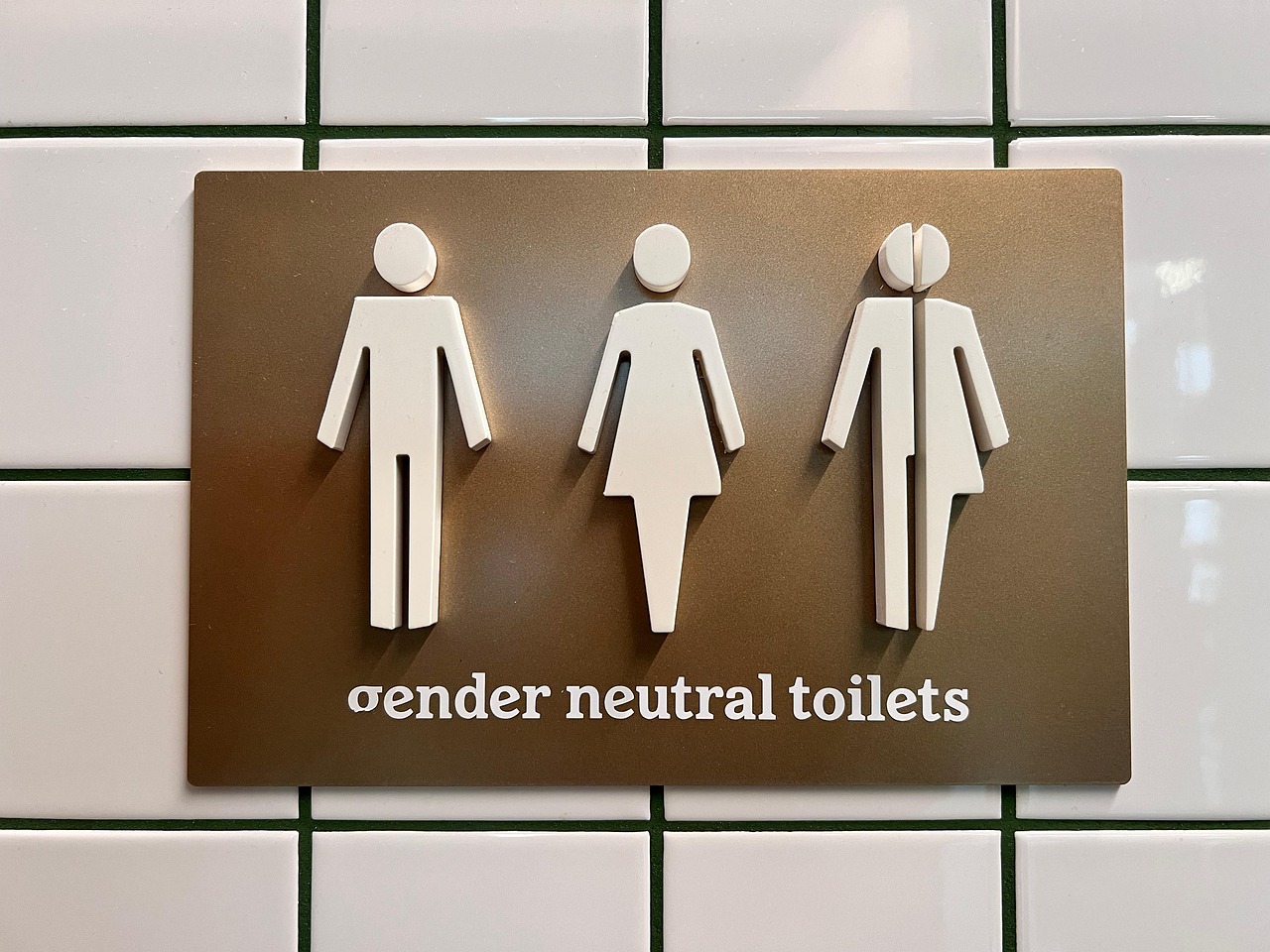
🌟 Embracing Accessibility as a Quality Standard
Viewing accessibility as a compliance burden misses the point entirely. Accessible design is quality design—it’s about respect for your audience and commitment to effective communication. When you remove barriers that prevent people from engaging with your content, you expand your influence, strengthen your message, and demonstrate professionalism that audiences remember and appreciate.
The time invested in making presentations accessible pays dividends in clearer communication, broader reach, and enhanced reputation. Organizations that prioritize accessibility signal their values and commitment to inclusion, creating environments where diverse perspectives can contribute fully. On an individual level, accessible presentation skills distinguish you as a thoughtful communicator who values every audience member’s experience.
Start implementing these accessibility tips in your next presentation. You’ll likely find that the discipline of accessible design makes you a better presenter overall, forcing you to clarify your message, eliminate unnecessary complexity, and focus on what truly matters. Your audience—all of them—will thank you for it.